YoForex AI MT5 software
MT5 expert advisors: Private EA and Dynamic Hedger EA
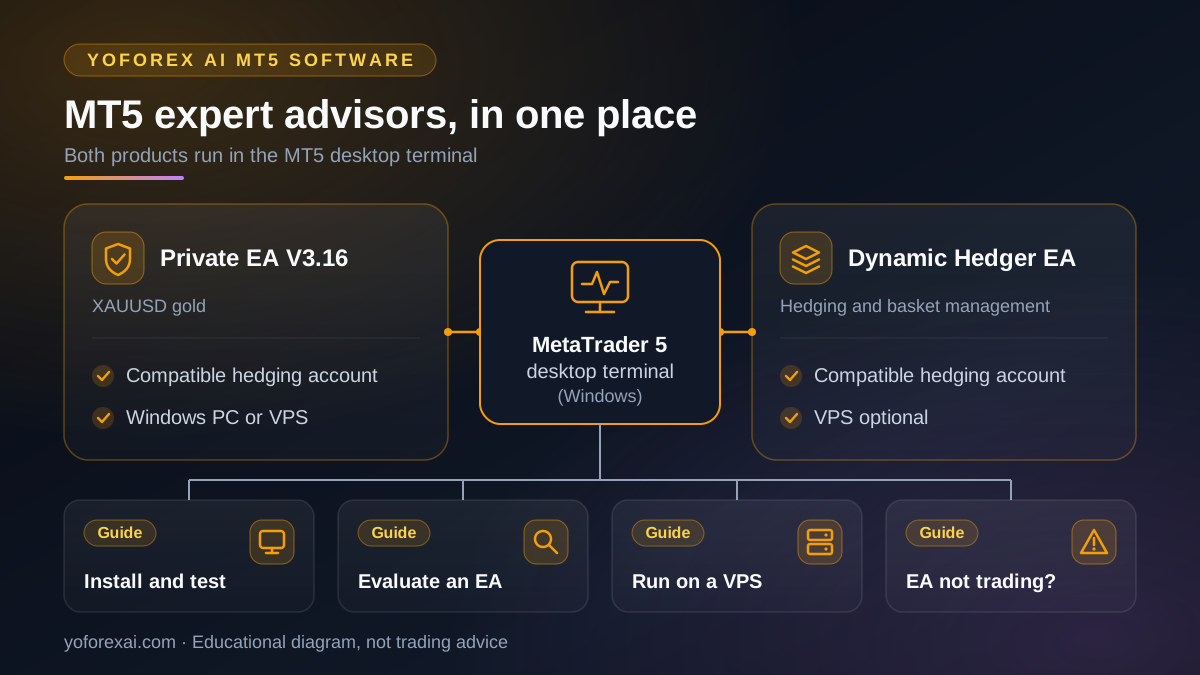
YoForex AI offers two expert advisors for MT5. Private EA V3.16 focuses on XAUUSD gold, and Dynamic Hedger EA is designed for hedging and basket exits. Both run in the MetaTrader 5 desktop terminal on Windows and need a compatible hedging account. They can act on live positions, so test on a demo account first.
Published · Updated · By YoForex AI Editorial Team
What are MT5 expert advisors?
An MT5 expert advisor, usually shortened to EA, is a program that runs inside the MetaTrader 5 platform. MetaQuotes describes these programs as trading robots that analyze prices using preset rules, decide when to trade, and place orders. The platform's own documentation also calls them Expert Advisors, and that is the term this page uses. A YoForex AI EA is software you install in your own terminal. It is not a signal service and it does not decide what you should trade.
The key point for buyers is that an EA can act on your account. Depending on its design, it may open positions, add to them, or manage trades that are already open. Before you enable one, you should know which actions it takes, which symbol and timeframe it expects, and how it behaves when your terminal is offline. The forex expert advisor guide explains the general lifecycle. This page covers the two products YoForex AI publishes for MT5.
Which YoForex AI expert advisor fits your plan?
The two products solve different problems. Private EA V3.16 is built around XAUUSD gold and includes basket controls, version comparisons, and gold-specific settings. Dynamic Hedger EA is built around hedging and basket management, so its settings concern offsetting positions and basket exits rather than a single symbol. Both require the same desktop platform, and both need a broker account that supports hedging. The table summarizes the requirements listed on each product page.
| Item | Private EA V3.16 | Dynamic Hedger EA |
|---|---|---|
| Main focus | XAUUSD gold, with basket controls | Hedging and basket management |
| Platform | MetaTrader 5 desktop terminal on Windows | MetaTrader 5 desktop terminal on Windows |
| Account | A compatible hedging account and the broker's XAUUSD gold symbol | A compatible hedging account |
| VPS | Windows PC or VPS. Confirm the setup with support. | Optional. A VPS can keep the terminal running. |
| Main risk | Gold price moves and exposure across a basket of orders | Costs on offsetting positions. Hedging does not remove the possibility of substantial loss. |
| Product page | Private EA V3.16 | Dynamic Hedger EA |
For a side-by-side view of the V1.1 and V3.16 Private EA versions, read the Private EA comparison. Do not assume that the older version behaves the same way as the current build.
Does the broker account type matter?
Yes. MetaTrader 5 accounts use one of two position systems. A netting account keeps one combined position for each symbol. A hedging account can hold several open positions on the same symbol, including opposite positions. MetaQuotes explains this in its trading operations documentation, and it notes that the broker decides which system an account uses.
Both YoForex AI products list a compatible hedging account as a requirement. A hedging-style strategy on a netting account can behave differently from what the documentation describes. Ask your broker whether the account is hedging, check the gold symbol name, and confirm contract size, lot step, and minimum volume. Requirements for accounts, leverage, and margin differ by broker and by country. Check the rules that apply where you live.
How should you test an MT5 expert advisor?
Start on a demo account. MetaQuotes documents the Strategy Tester for this purpose. According to its help page, testing runs an expert advisor once with fixed parameters on historical price data, and optimization runs it many times with different parameter sets. The tester can also show a report, a graph, and visual test runs. A single backtest is not proof of future results, because the market in the test may not repeat.
- Install the product in the MT5 desktop terminal and confirm the version.
- Confirm the account type, symbol name, and minimum lot size with your broker.
- Write down every input value before you change anything.
- Run a backtest on the period you plan to use, and read the report, not only the net result.
- Run the EA on a demo account for a period long enough to see several market conditions.
- Enable live trading only after you can explain every open position the EA creates.
The install and test guide walks through the terminal setup.
Do you need a VPS?
A VPS is optional for Dynamic Hedger EA and can help when the terminal must stay online. A virtual server keeps MetaTrader 5 running when your own computer sleeps, restarts, or loses its connection. It does not improve the strategy, and it adds a cost and a second system to manage. Private EA V3.16 can run on a Windows PC or a VPS. Confirm the VPS setup with support before you rely on one.
A phone is not the execution environment for Dynamic Hedger EA, whose product page says it needs a supported desktop MT5 terminal or VPS to keep running. Private EA's product page calls for a continuously running supported terminal or VPS. You can use mobile MT5 to monitor the account where your broker allows it.
Where do installation and support fit?
Common installation problems come from one of four places: the terminal is closed, algorithmic trading is disabled in the platform settings, the account type does not match, or the symbol name is wrong. If an EA does not trade, check the product setup steps and the terminal log before you contact support.
When you contact support, send the product version, the account type, and a redacted log. Never send passwords, two-factor codes, or private keys. For plans and access terms, see the pricing and features page and the product pages. Prices and terms can change, so confirm the current details with support before you buy.
What risks come with automated trading?
Automation removes the need to watch each order, but it does not remove the risk. An EA can open several positions quickly, keep losing positions open, or continue trading after conditions have changed. A hypothetical example: an EA adds an order each time price moves against a basket. If the market keeps moving the same way, the losses can grow faster than the trader expects. The EA's design is not a promise that the market will turn back.
Hedging adds costs. Offsetting positions still pay spreads and swaps, and they can use margin. A hedge can change exposure, but it cannot guarantee that a losing position recovers. Gold is volatile, and a gold-focused EA can lose money during fast moves. Set a maximum loss you can accept before you start, and keep a plan for what you will do if automation stops.
Key takeaways
- An MT5 expert advisor is a program in the MetaTrader 5 terminal. It can act on your account, so review its settings first.
- Private EA V3.16 focuses on XAUUSD gold. Dynamic Hedger EA is designed for hedging and basket exits.
- Both products list the MT5 desktop terminal on Windows and a compatible hedging account as requirements.
- Test on a demo account, read the backtest report, and confirm your broker's account type and gold symbol.
- No expert advisor guarantees profit or recovery. Trading involves risk of loss.
Frequently asked questions
Is Private EA the same as Dynamic Hedger EA?
No. Private EA V3.16 is a gold-focused XAUUSD product. Dynamic Hedger EA is designed to manage hedging and basket exits on MT5. Review each product page separately, because the settings and risks differ.
Do I need a hedging account for both products?
Both product pages list a compatible hedging account as a requirement. The broker decides which position system an account uses, so confirm this before you install anything.
Can I run an MT5 expert advisor on my phone?
No. Both products need a supported terminal that keeps running, either on a desktop or on a VPS. A phone can be used to monitor the account where the broker allows it.
Does an expert advisor guarantee profit?
No. An EA follows its rules in live conditions, and those rules can lose money. A backtest or demo result does not guarantee future performance.
Should I test before buying or using a live account?
Yes. Use a demo account first. Check the settings, the account type, and the behavior of the EA during several market conditions before you risk real capital.
Where should I start if I am new to expert advisors?
Read the forex expert advisor guide, then the install and test guide. Return to the product pages once you know which requirements apply to your account.
Sources and verification
Primary-source links used for the platform behavior and risk statements in this guide. Sources reviewed 7 November 2026.
- MetaQuotes: Algorithmic Trading, Trading Robots · Reviewed
- MetaQuotes: Basic Principles of Trading Operations · Reviewed
- MetaQuotes: Strategy Testing · Reviewed